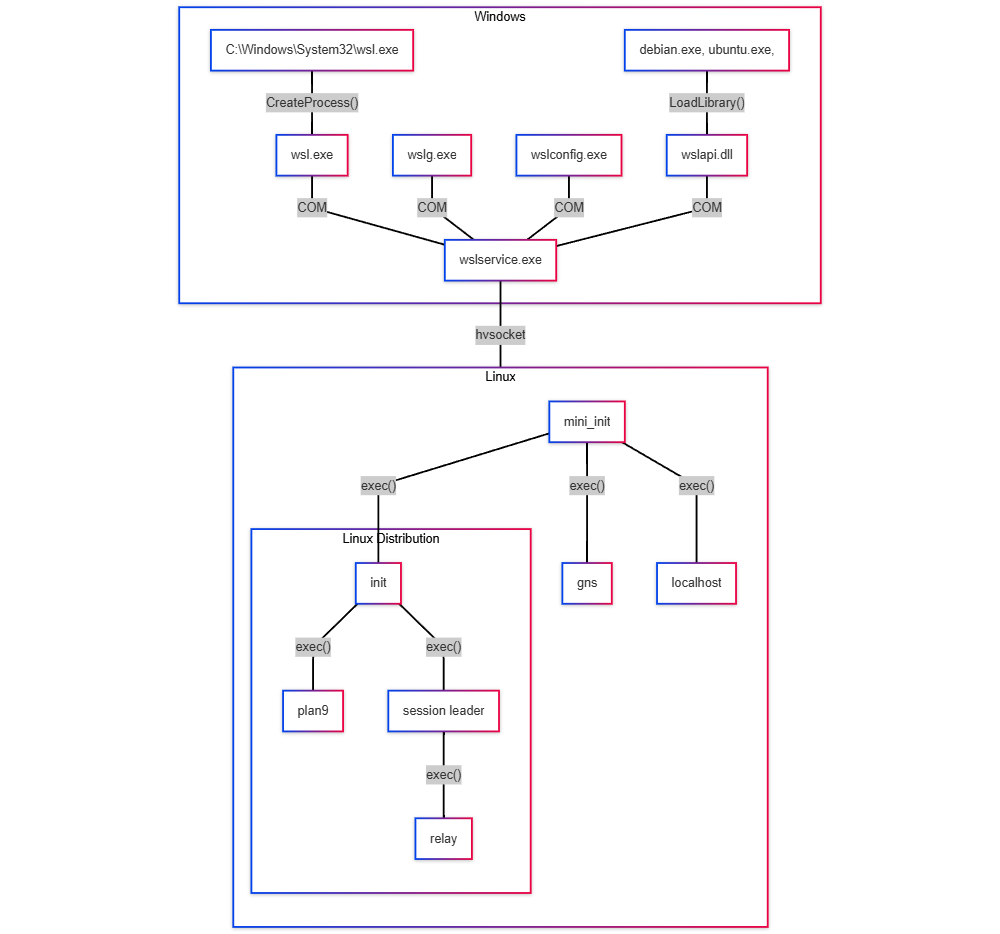
The Windows Subsystem for Linux (WSL) is a compatibility layer developed by Microsoft that allows users to run a native Linux environment directly on Windows without the overhead of a traditional virtual machine or a dual-boot setup.1 It’s a critical tool for developers and system administrators, enabling them to leverage the vast ecosystem of Linux command-line tools, utilities, and applications seamlessly within their Windows workflow.2
💻 What is WSL?
WSL is fundamentally a way for the Windows kernel to execute Linux ELF64 binaries.3 There are two main versions:4
-
WSL 1: This original architecture used a translation layer to convert Linux system calls into Windows NT kernel system calls.5 It did not use a true Linux kernel but provided high performance for file access between Windows and Linux.
-
WSL 2: The current and recommended version, WSL 2, represents a major architectural overhaul.6 It utilizes the Windows Hyper-V virtualization technology to run a real Linux kernel within a lightweight utility virtual machine (VM).7 This managed VM is fast-booting, requires no manual configuration, and is the default for new installations.8
Key Architectural Differences (WSL 2)
-
Full Linux Kernel: Offers 100% system call compatibility, allowing many applications (including Docker) that couldn’t run on WSL 1 to work seamlessly.9
-
Performance: Significantly faster for file system operations within the Linux environment (e.g.,
git clone,npm install) compared to WSL 1, where file I/O performance across the Windows-mounted file system was a major bottleneck. -
Networking: WSL 2 uses a Network Address Translation (NAT) layer but provides excellent integration, allowing services running inside WSL to be accessed directly from Windows using
localhost.10
🚀 How to Run WSL on Windows
WSL is easy to install and run, especially on modern Windows versions.11
Compatibility
WSL is fully supported on Windows 11 and modern versions of Windows 10 (Version 1903, Build 18362 or later).12 It’s available across Home, Pro, and Enterprise editions of Windows 11.
Installation and Launch
The simplest method for installation uses a single command in an elevated PowerShell or Command Prompt:13
wsl --install
This command automatically performs several steps:
-
Enables the necessary “Windows Subsystem for Linux” and “Virtual Machine Platform” optional components.14
-
Downloads and installs the latest WSL kernel and framework.
-
Installs the default Linux distribution, typically Ubuntu LTS, from the Microsoft Store.15
After a reboot, the installed Linux distribution launches, prompting the user to create a UNIX username and password.16 You can launch a WSL distribution by:
-
Typing
wslin PowerShell or Command Prompt.17 -
Selecting the distribution (e.g., “Ubuntu”) from the Windows Start Menu.18
-
Using Windows Terminal, which automatically integrates installed WSL distributions.19
🎨 Does WSL Have a Graphical Interface (GUI)?
Yes, WSL supports running Linux Graphical User Interface (GUI) applications.20
This capability is provided by WSLg (Windows Subsystem for Linux GUI), which is included by default with the latest WSL installations on Windows 11 and is also available on Windows 10.21
WSLg provides a fully integrated desktop experience:22
-
Linux GUI applications can be launched directly from the Windows Start Menu.23
-
They run on the Windows desktop, appearing and behaving like native Windows applications.24
-
The system supports hardware-accelerated OpenGL rendering by utilizing a virtual GPU (vGPU).25
-
It allows copy/paste and
Alt+Tabswitching between Windows and Linux apps.26
⚖️ WSL vs. Virtual Machines (VMware/VirtualBox) vs. Docker27
WSL, traditional VMs (VMware, VirtualBox, Hyper-V), and Docker containers serve different purposes, though they all facilitate running Linux environments.
| Feature | WSL 2 | Traditional VM (VMware/VirtualBox) | Docker Containers |
| Isolation | Lightweight VM, managed by Windows, shared kernel/network components. | Strong isolation, full separation from the host OS, emulated hardware. | Process-level isolation, shares the host’s (Linux) kernel. |
| Startup Time | Near-instantaneous. | Slow (requires full OS boot). | Instantaneous (no OS to boot). |
| Resource Footprint | Low (dynamic memory allocation). | High (requires dedicated, reserved resources). | Very Low (resource-efficient). |
| GUI Support | Excellent (via WSLg). | Requires manual setup of X server or desktop environment. | Possible, but less common and more complex setup. |
| Use Case | Development, CLI tools, testing, simple GUI apps, seamless Windows/Linux integration. | System administration, security labs, kernel development, OS testing, full device access (USB/GPU passthrough). | Application packaging, deployment, microservices, consistent runtime environments. |
Conclusion on “Better”
-
For Development: WSL 2 is generally superior to traditional VMs.28 It offers an unparalleled balance of performance, seamless integration, and low resource overhead, making it the definitive choice for developers who need Linux tools on Windows.29 The improved I/O on its native file system often outperforms both WSL 1 and slower Type 2 hypervisors like VirtualBox.
-
For Docker: WSL 2 is the preferred backend for Docker Desktop on Windows.30 It’s faster and more resource-efficient than using Hyper-V, and enables running Linux containers natively.31
-
For Complete Isolation/System Testing: Traditional VMs remain necessary when you need complete OS isolation, full control over the Linux kernel, or direct hardware access (like GPU passthrough or dedicated USB devices).32
This video gives a step-by-step guide on how you can get WSL installed on a Windows 11 machine: Install WSL on Windows 11 in 3 Minutes | Step-by-Step Guide
Would you like to know more about the specific wsl command-line tools for managing your distributions?